
How to set up a proxy for Telegram on Windows
Telegram has a proxy setting of its own, and on a desktop Windows machine it hides under Settings → Advanced → Connection Type. That one screen is enough for a single copy of Telegram. When several copies run side by side, or you want one application proxied and everything else left alone, the cleaner tool is Proxifier with a rule for Telegram.exe, and this guide walks both paths, in that order.
Jump to a section
What a proxy changes for Telegram, and what it does not
Telegram sees the connection arriving from the proxy server instead of from your provider’s address. That is the whole effect, and it is why proxies are used: a different region for an account, a separate channel per copy, a cleaner separation between two jobs running on one PC.
What a proxy does not do: it does not speed anything up by itself, it does not fix a limited account, and it does not hide the fact that a Telegram account is a Telegram account. If a provider promises otherwise, that promise is about their server, not about Telegram.
Telegram apps accept two proxy families. SOCKS5 takes a server and a port, with a username and password when the provider uses them. MTProto adds a secret and exists specifically for Telegram traffic; it is what public proxy lists hand out. For your own paid SOCKS5 server, SOCKS5 is the natural choice, and it is the one both paths below use.
Path one: the proxy setting inside Telegram
Open Settings → Advanced → Connection Type and click Add Proxy. Choose SOCKS5, fill in the server, the port, and the credentials if your provider issued them, then save. The line you just added gets a switch of its own: the proxy works only while it is on.
| Setting | What goes in |
|---|---|
| Type | What goes inSOCKS5 |
| Server / hostname | What goes inproxy.example.com or an IP address |
| Port | What goes in1080 or the one your provider issued |
| Username, password | What goes inOnly if the provider uses password auth |
This setting lives inside one copy of Telegram and follows it nowhere. Two portable copies need the same proxy entered twice, and a browser on the same PC keeps connecting directly. That is correct behaviour, not a defect, and it is the exact moment people usually reach for Proxifier.
Path two: Proxifier, when one setting is not enough
Proxifier does what the built-in screen cannot: it routes applications. You add a proxy once, then write rules like «Telegram.exe goes through this server, everything else connects directly». Every copy of Telegram Desktop on the machine matches that one rule, because they all run the same executable name.
It is paid software with a 31-day fully functional trial, and the license is perpetual rather than a subscription. The Windows edition ships as a Standard installer and as a Portable build; for work with several Telegram copies the Portable build is the tidier neighbour. Before switching, turn the proxy inside Telegram off: a proxified connection to a proxy endpoint is traffic handled twice.
Adding the SOCKS5 proxy in Proxifier
In Proxifier open Profile → Proxy Servers → Add. The address and the port are two separate fields: if the provider handed you one long string, split it rather than pasting it whole into the address line.
| Dialog field | Value to enter |
|---|---|
| Address | Value to enterproxy.example.com or the server IP |
| Port | Value to enter1080 |
| Protocol | Value to enterSOCKS Version 5, when the provider issued SOCKS5 |
| Authentication → Enable | Value to enterOn for username/password auth, then the two fields below |
Click Check before you rely on the server. A passed check confirms the proxy answers; it does not promise that Telegram traffic is welcome on it or that a tariff survives dozens of clients. Those are questions for the provider, not for the checker.
When Proxifier offers to make the new server the default for everything, choose No. This setup routes Telegram through a rule on purpose; a global default would quietly proxy the browser, the updater and everything else too.
The rule for Telegram.exe
Now the rule itself: Profile → Proxification Rules → Add.
| Rule field | Value |
|---|---|
| Name | ValueTelegram |
| Enable | ValueChecked |
| Applications | ValueTelegram.exe |
| Target hosts, ports | ValueLeave empty; Proxifier shows Any |
| Action | ValueThe SOCKS5 proxy you added |
Saved, the rule sits in a list, and the order of that list is the logic. The first matching rule wins, so the standard profile reads:
| Position | Rule | Route |
|---|---|---|
| 1 | RuleLocalhost | RouteDirect |
| 2 | RuleTelegram | RouteYour SOCKS5 proxy |
| 3 | RuleDefault | RouteDirect, unchanged |
Localhost keeps the machine talking to itself without a detour; Default stays direct so only the Telegram rule actually routes. If Telegram ever fails to connect while the rule looks right, check this order first: a stray rule above Telegram with a proxy action is the usual culprit.
Several Telegram copies through one rule
Copies of Telegram Desktop are just directories: unpack the portable build once per account, each with its own folder and its own data, and every copy still runs Telegram.exe. The one rule you wrote covers them all, which is the point of routing by application rather than by connection.
To tell the copies apart in the log, enable verbose output in Proxifier’s view settings: the process ID appears next to the name, and a PID is unambiguous even when five lines all say Telegram.
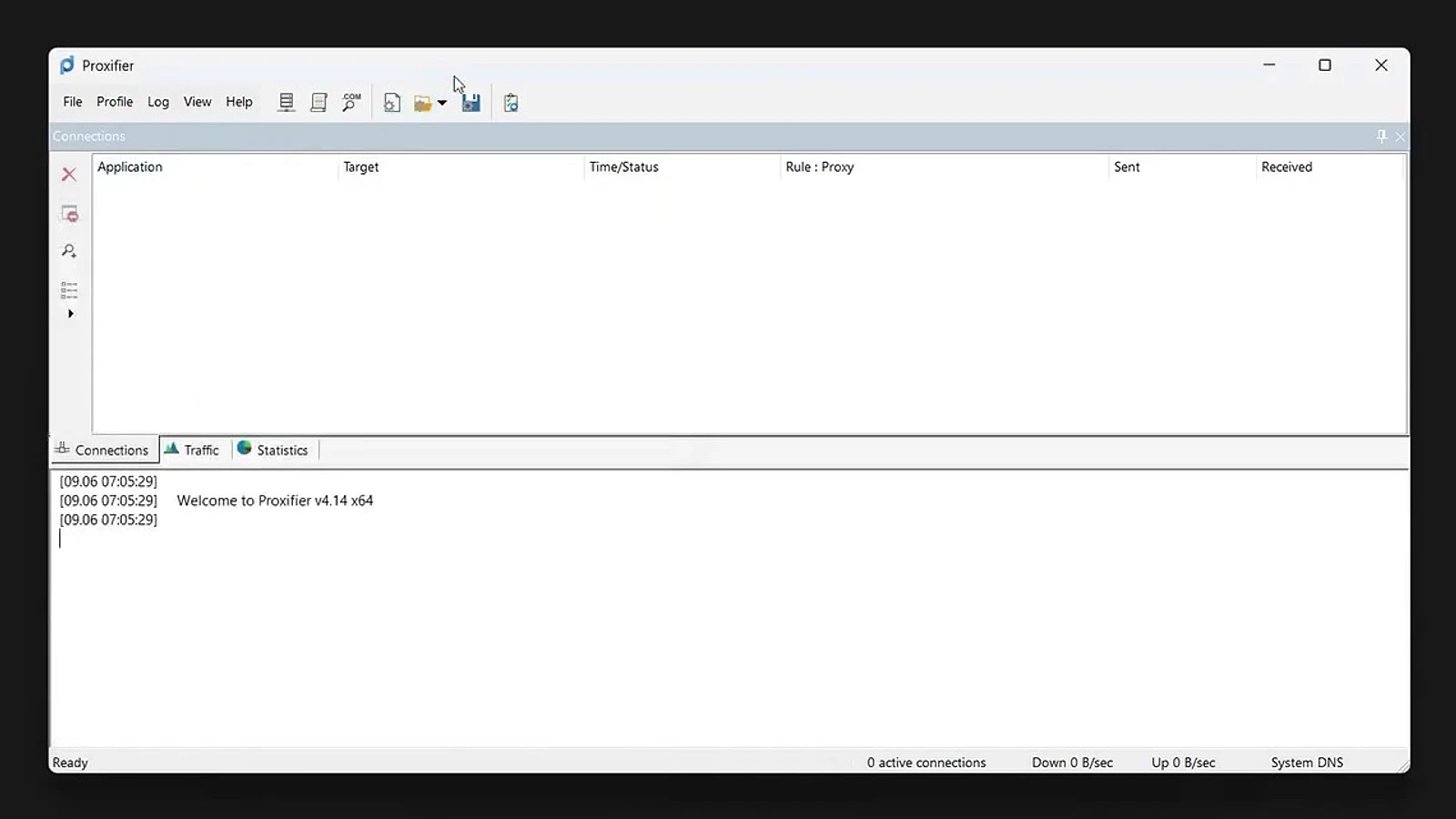
Reading the Connections log
The log answers the only question that matters after a change like this: did it take. Look for rows where the Process column says Telegram.exe and the Rule column says your Telegram rule. The Target column will show Telegram’s own server addresses, the 149.154.x.x and 91.108.x.x ranges.
| Column | What it tells you |
|---|---|
| Process | What it tells youWhich executable made the connection |
| Target | What it tells youThe destination server (Telegram’s own ranges here) |
| Rule: Proxy | What it tells youWhich rule fired, and the proxy’s entry address |
Target is not your exit IP. It names the server being connected to. On a rotating gateway even the address in Rule: Proxy is just the door, not the room: which address a given request left from is the provider’s answer to give, not the log’s. A browser IP-check page, meanwhile, reports the browser, which your rule deliberately leaves direct.
Rotating proxies: what rotates and what does not
A “rotating” proxy changes the exit address on the provider’s side: per request, per session or per timer, depending on the product. Nothing about Proxifier changes: same server, same port, same rule. When several Telegram copies must hold different addresses at the same time, one rotating gateway shared by all of them is the wrong shape; the right one is a separate (sticky or dedicated) endpoint per copy, each with its own rule.
How many sessions a tariff allows, whether Telegram traffic is welcome on a network, and how sticky the sticky sessions really are: those live in the provider’s documentation. A rule name in a program cannot promise any of it.
When it does not work: four usual suspects
The proxy inside Telegram is still on. A proxified client trying to reach a proxy endpoint of its own is the classic doubled connection. Turn the built-in proxy off and restart the client.
The rule order changed. Rules are evaluated top down; anything with a proxy action sitting above Telegram takes the traffic instead. Drag the order back to Localhost, Telegram, Default.
The server itself failed the check. Re-run Check in the proxy dialog, fix the credentials or the port, and only then look anywhere else.
Telegram was running the whole time. Existing connections keep their old route. Close the client completely (including from the tray) and start it again, then read the log for fresh rows.
Turning it off and keeping the setup
To pause, untick Enable on the Telegram rule (or close Proxifier) and restart the client; connections go direct again. To keep the whole arrangement for later, save it with File → Save Profile As under a name of its own. Proxifier keeps saving the current profile as it goes, so a named copy is what survives an experiment gone wrong.
Common questions
Does Telegram have a proxy setting of its own?
Yes. On Windows Desktop it is Settings → Advanced → Connection Type; on phones it sits under Settings → Data and Storage → Proxy. A SOCKS5 proxy with server, port and optional username/password can be added right there, with no extra software.
SOCKS5 or MTProto: which one does Telegram need?
Both work as transport. SOCKS5 takes server, port and optional credentials and is the standard choice for your own paid server; MTProto adds a secret and exists specifically for Telegram traffic, which is what public proxy lists distribute.
Does the proxy change the IP Telegram sees?
It changes the address the connection arrives from. What Telegram’s servers log beyond that, and which exit address a rotating gateway used for a given request, is not visible in Proxifier’s log: the Target column shows Telegram’s servers, not your exit IP.
Can one rule cover several copies of Telegram?
All of them do. Every copy of Telegram Desktop runs Telegram.exe, so a rule scoped to that executable matches all of them, including portable copies in separate folders. Enable verbose output to see the PID when the copies must be told apart.
Is Proxifier free?
No. It is paid software with a 31-day fully functional trial and a perpetual license; the Windows edition exists as a Standard installer and as a Portable build.
Where the facts come from
- Telegram: proxy support in official apps (paths per platform, SOCKS5 and MTProto)core.telegram.org/proxy
- Proxifier: documentation for Proxy Servers and Proxification Rulesproxifier.com/docs
- Proxifier: licensing and the 31-day trial (FAQ)proxifier.com/faq
- Telegram Desktop: official Windows downloaddesktop.telegram.org