
How to sign in to Telegram on a new phone and keep your chats
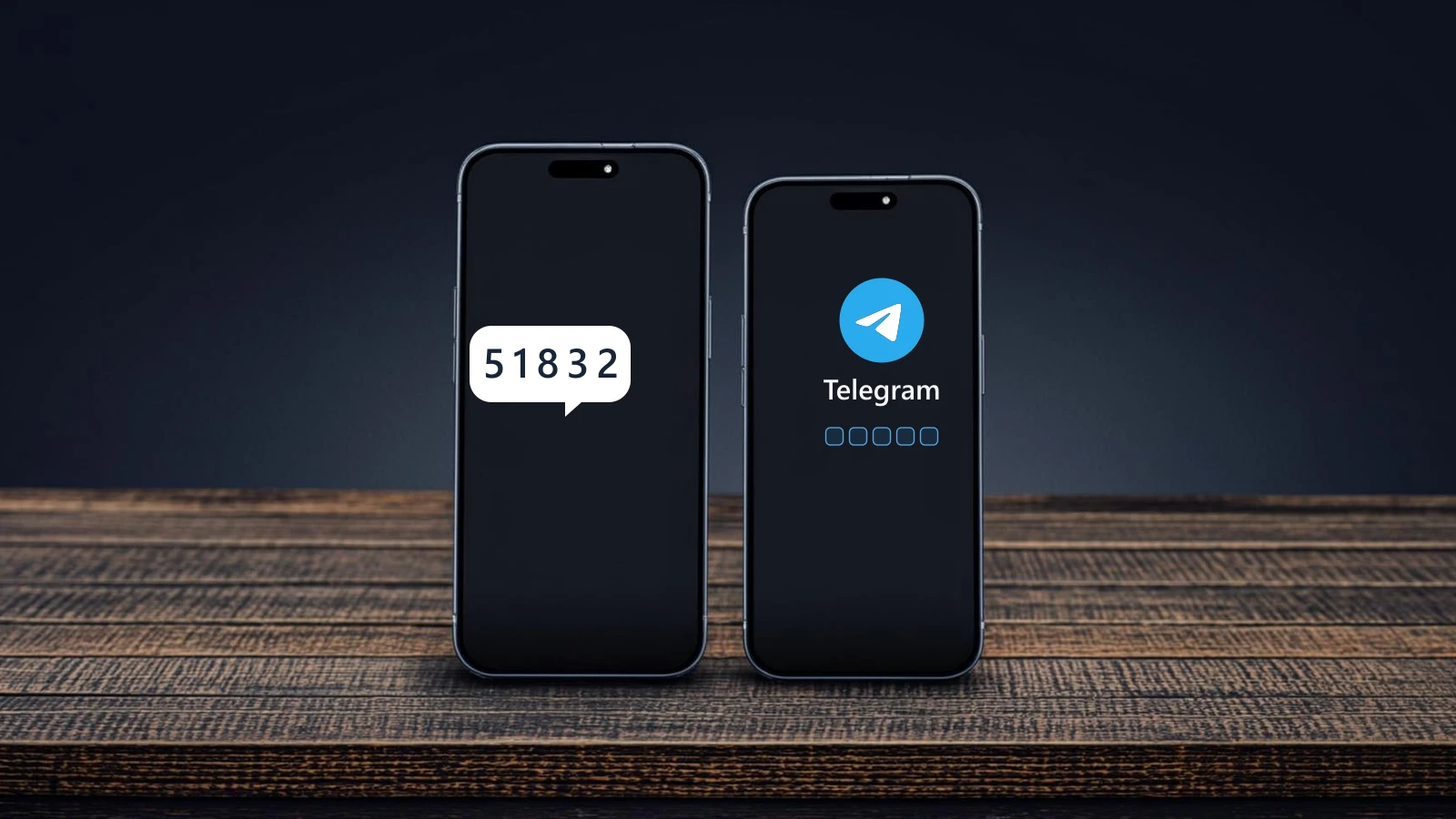
A new phone doesn't need a new Telegram account. Install the app, type the number the account already lives on, and confirm the sign-in with whatever Telegram sends: a code inside Telegram itself, an SMS, an email, or a passkey created earlier. If the account carries a cloud password, the app asks for it after the code. The hard cases are covered below too. That includes the old phone already gone, and a code that never arrives.
Jump to a section
What to settle before touching the new phone
Start with the number. Open Telegram's settings on the old device. Read the number printed there; that exact number, country code included, is what the account lives on. Check it twice. Everything further down this page hangs on those digits.
The SIM sitting in the new phone proves nothing either way. Accounts stay bound to numbers people keep for years, and a SIM bought yesterday isn't the number your Telegram knows until you sign in with it. Swapping the plastic does not move the account with it.
If the number in the old phone's settings differs from the one you were about to type, stop and decide which account you want to open, because the mix-up is frequent after a SIM swap and it ends at a telltale screen: an offer to create a brand-new account.
The second check concerns the old device itself. While it holds a signed-in session, the old phone can receive login codes, and the later section on a lost device covers what changes once no session exists anywhere. Until then, leave it alone.
Signing in on the new phone
The sequence is short. What varies is where the code comes from, and Telegram decides where.
- Install the app for Android or iPhone from the official Telegram site, telegram.org.
- Open it and start the sign-in. If the app already holds another profile of yours, use the add-account command instead of logging out; the first profile stays exactly where it is.
- Type the old account's number with its country code, and check it against the settings screen from the section above.
- Read the confirmation screen. It tells you where the code was sent, and it offers the passkey route whenever one is available.
- Confirm with the code or with the passkey. If the account has a cloud password, the app asks for it next.
- Once you are inside, open settings, verify the number, and look up a chat you know well. That last look is the real confirmation that the right account opened.
Buttons sit in slightly different places on Android and iPhone. Treat the confirmation screen as the map. It describes an event that already happened. The code was dispatched somewhere, and the screen tells you where. Nothing on it asks you to choose a channel. The choice can differ from one account to the next, and an SMS is one of the possibilities, not a promise.
Reading the code from a session that still works
Telegram often delivers the code as a message from its own service chat, and that chat opens wherever the account already runs: the old phone, a tablet, a desktop client. Find the message on any device with a live session, and carry the digits into the app on the new phone.
If the computer holds several accounts, check which one is selected before typing anything: the profile number there must match the number you entered on the phone, and a glance at the account switcher is all the checking takes.
The number you typed has no account on it
That offer to create a new profile is a diagnosis, not a step in this guide: it appears when the number you entered has no Telegram account attached, and the usual cause is the fresh SIM typed by reflex. Filling in a name and a photo will not bring the old chats into the new profile, because they belong to a different account.
If a second, separate account is genuinely what you want, that is a registration flow with choices of its own. Otherwise go back and re-enter the number from the old device's settings.
What survives the switch
Most people bring one question to a new phone: will the chats be there? For ordinary chats the answer comes from the design of Telegram itself. Those chats live in its cloud, attached to the account rather than to any one handset. Nothing has to be carried across by hand. Secret chats are the deliberate exception. Each is bound to the devices it was created and conducted on, and the cloud holds no copy to give the new phone.
| What you want to keep | What the new phone gets |
|---|---|
| Personal chats, groups and channels | What the new phone getsThe cloud history, still attached to your account, appears on its own. |
| Photos, videos and documents from those chats | What the new phone getsThey can be downloaded again while they remain available inside the messages; not everything lands on the phone at once. |
| Secret chats | What the new phone getsNothing. They exist only on the devices where that correspondence ran. |
| Files that lived only in the old phone's storage | What the new phone getsWhatever you copy across yourself. Signing in does not touch the phone's memory. |
Photos, videos and documents in ordinary chats come back by being downloaded again from the messages that still hold them, and that does not happen all at once. You open something, it loads. The rest stays in the chat history until you ask for it. Files that lived only in the old phone's storage, outside Telegram, are a different matter: signing in does not touch the phone's memory, so copy those across yourself while the old device still turns on.
If a familiar chat did not appear, work the checks in order. Confirm the account number first. Then scan the full chat list, open the archive, search by the contact's name, and make sure Telegram has a live network connection. A secret chat fails all of the above by design, and waiting will not make it appear.
Is a backup needed?
For ordinary chats, no separate backup is needed: signing in brings the cloud history back. An export is worth making only if you want the correspondence readable outside the app. Telegram Desktop can export your data to HTML or JSON. The archive holds the data for viewing and for processing, and that is everything it does. You can't sign in on a phone with it, and it does not restore anything into the app; the cloud already did that when you signed in.
Signing in with a passkey
A passkey replaces the code with something you already are: a device PIN, a fingerprint, a face check. Telegram has supported them since December 2025. On a new phone the method has one firm precondition: the passkey must exist already and be reachable from the new device.
Reachable usually means a password manager that syncs across your hardware. Merely owning a Google or Apple account doesn't settle the question. The sign-in screen will show whether a passkey is actually stored there.
For a phone switch, this route has one practical strength: no message has to arrive anywhere, by SMS, email or service chat. The trade is preparation. The passkey has to exist before the old device goes dark, which is why the creation steps below belong to today rather than to moving day.
- Choose the passkey option when the app offers it.
- In the system sheet that opens, pick the passkey belonging to this Telegram account.
- Confirm with the device's fingerprint, face check, or screen-lock code.
Creating the passkey in advance takes a minute, needs the old session still alive, and lives in Telegram's settings under Privacy and Security, on a dedicated passkeys screen. Create the key there, then rehearse the new-phone sign-in once before resetting anything on the old device.
A passkey does not replace the cloud password. Where both are enabled, Telegram asks for the password even on a passkey sign-in. Keep the ability to receive messages on the phone number, too: the number stays central to the account whatever else you enable.
When the code goes to your email
Some accounts receive their codes by mail. The confirmation screen names the address, in full or shortened. That hint is the whole instruction. Open exactly that mailbox, check the inbox and then the spam folder, and carry the code back into the app on the new phone. No other address will do.
The route has one advantage worth knowing. A mailbox doesn't depend on any particular phone. An account with a working login email keeps a confirmation route even when no device is signed in, which is the exact situation of the lost-device section below.
If Telegram asks you to set a login email during the sign-in itself, use an address you control and expect to keep, because someone else's mailbox may be needed again at the next sign-in.
Two different settings hide behind the word email. The login email receives sign-in codes. The recovery email exists for a forgotten cloud password. Telegram stores them separately, and configuring the second one doesn't mean codes will arrive there. One address, one job.
If you can't open the mailbox the screen names, check whether the app offers to reset the login email; Telegram can attach a waiting period to that reset. Follow the on-screen instruction rather than improvising. A new address by itself doesn't reopen the account, and where a wait applies, the wait is part of the procedure.
The old phone is gone
Lost or broken doesn't mean locked out, but the order of checks matters. Check the quiet hardware first. A tablet or a computer that still runs the account receives in-app codes the same way the old phone did, and even a session you forgot about can be the one that saves the sign-in. The tablet in a drawer counts. So does the laptop you never logged out of.
With no live session anywhere, the confirmation screen lists what this number supports. An SMS, if the number itself is reachable. The login email. Or a passkey, if one exists and the new device can use it. Each path depends on you holding the thing it runs on. Read the list as an inventory of what you still hold.
If the SIM stayed inside the stolen phone, have the carrier block it and issue a replacement carrying the same number, which is the exact order Telegram's own theft FAQ recommends. A cloud password, where one is set, still applies after the SIM swap, so have it ready before you begin.
When nothing checks out, with no number, no mailbox, no passkey and no live session left, the account may be unrecoverable. A username or a profile photo will not sign you in: they identify you to other people, and to a sign-in screen they are not credentials at all.
Moving the account to a different number
A changed number is a setting inside the account, not a new account. While the old account is still reachable, open its settings and change the bound number. Confirm the new number when Telegram asks. Afterwards you sign in with it from any device. Until you change it from inside, the account opens with the old number.
Registering a fresh profile on the new SIM is not that move. Two separate accounts stay two separate accounts, Telegram has no merge for them, and the original keeps its number until you change it from inside.
When the sign-in stalls
Most stalls fit one of five patterns, and each has a fix that costs minutes. Start by reading the screen, because it usually names the problem.
Nothing arrived after the send
Read the screen before you blame the network. If Telegram says the code went to the app on another device, no SMS is coming and none is needed. If it names an email, that mailbox and its spam folder are the place to look.
For a genuine SMS delivery, work the short list: the number is right, the SIM is active and receives texts, and the resend timer has expired, and if it still fails, ask the carrier whether SMS delivery is restricted. Take the phone-call or alternative option only when Telegram itself offers it.
The app rejects the code
Check that the digits belong to this account and this attempt. One digit off, and the app treats the whole code as wrong. An earlier request sitting higher in the chat or the inbox no longer counts. Where several were requested, only the newest does. An expired code has to be requested anew, once the app allows it.
The code goes into the app or the official site where the sign-in began, nowhere else. A contact, a bot or anyone introducing themselves as support has no business receiving it.
The app locks out further requests
If you tapped resend too many times and the app now refuses, stop requesting new codes and wait out the period named in the error. Where the screen shows a timer, it's Telegram's own; nothing on your side speeds it up. Where no period is shown, give it a pause, because there's no universal countdown. If the message asks for an update instead, install the current official version and try the sign-in again.
After the code, the cloud password
That password is the two-step verification password from the account's security settings, and it is never sent together with the code. If you have forgotten it, tap the forgot-password option and read what the app offers: with a recovery email configured, the reset runs through it. A still-signed-in device elsewhere can sometimes start a reset that involves a waiting period.
Resetting the password and resetting the account are different procedures with different consequences. Read any warning about deleting data twice before confirming. An account reset deletes the history together with the password.
A Premium screen before the sign-in continues
This screen also appears in the official app. It comes up in certain countries and on certain carriers, where SMS delivery is expensive, and Telegram ties continuing the sign-in to buying Premium there. Read the exact terms and the price in the app before deciding. The purchase hasn't become a mandatory step for all users; it depends on the country and the carrier.
The same account on a computer
Install Telegram Desktop, or open Telegram Web in a browser. On the computer, sign-in starts from a QR code whenever the phone already works:
- Open Telegram's settings on the phone and find the devices section.
- Choose the option to link a device.
- Point the built-in scanner at the QR code shown on the computer screen, then confirm.
Linking a device is confirmed from a session that is already signed in, which is why QR login requires an authorized app in the first place.
Notice what that flow is for. It attaches a computer to an account that already works on a phone. A new phone signs in through the mobile app's own methods described above. The QR code is not that path.
An account delivered as a tdata archive has to be opened on Windows first, and our guide to opening a tdata archive in Telegram Desktop walks that, from placing the folder to the first launch. Copying the folder onto a phone does not replace signing in on the mobile app.
Retiring the old phone
On the new device, check that the settings show the right number, that a chat you know opens with its history, and that a message to Saved Messages comes back. Copy whatever local files you care about while the old phone still turns on. Make sure the cloud password, if there is one, is something you actually remember.
After that, logging out on the old device is optional: running Telegram on the phone and the desktop at once is normal, and both screens show the same cloud chats. Log out only when the device is leaving your hands.
To audit what is connected, open the devices section in settings. One limit there surprises the impatient: terminating all remaining sessions at once cannot be done from a brand-new session during its first twenty-four hours. If the old phone is in your hand, log out directly on it.
Common questions
My old phone is gone. Is the account lost too?
Not necessarily. A live session on a computer or tablet still receives codes. Otherwise the confirmation screen lists what this number supports: SMS, a login email, or a passkey. Without access to any of those, recovery may be impossible.
Why is no SMS arriving?
Telegram probably sent the code somewhere else: into the app on a device where the account is already open, or to the login email. The confirmation screen names the channel it chose.
Do my old chats appear on the new phone by themselves?
Ordinary chats, groups and channels do, because Telegram keeps them in its cloud under your account. Secret chats do not travel, and files stored only in the old phone's memory need a manual copy.
My SIM is still in the old phone. Can I still sign in on the new one?
Yes, as long as one confirmation method works: a live session elsewhere, a login email, or a passkey. The number stays attached to the account whatever SIM, if any, is in the handset. The working confirmation route matters more than the plastic.
If I sign in with a passkey, is the cloud password skipped?
No. The passkey stands in for the code, and the cloud password is still requested afterwards when the account has one.
Where each claim comes from
- Telegram: the official apps for Android and iPhonetelegram.org/apps
- How Telegram chooses the code delivery methodcore.telegram.org/api/auth
- Telegram's announcement of passkeystelegram.org/blog/passkeys-and-gift-offers
- Passkeys and the cloud password in the API docscore.telegram.org/api/passkeys
- Telegram's privacy policy on the email addresstelegram.org/privacy
- The Telegram FAQ answer for a stolen phonetelegram.org/faq
- Changing the bound number: account.changePhonecore.telegram.org/method/account.changePhone
- Cloud password recovery in the API docscore.telegram.org/api/srp
- auth.sentCodePaymentRequired: sign-in tied to a Premium purchasecore.telegram.org/constructor/auth.sentCodePaymentRequired
- Telegram's privacy policy on how messages are storedtelegram.org/privacy
- Exporting Telegram Desktop data to HTML or JSONcore.telegram.org/import-export
- Telegram Desktop: the official sitedesktop.telegram.org
- Telegram Web: the browser clientweb.telegram.org
- QR login in the API docscore.telegram.org/api/qr-login
- auth.resetAuthorizations and the 24-hour limitcore.telegram.org/method/auth.resetAuthorizations