
How to log in to Telegram with TDATA
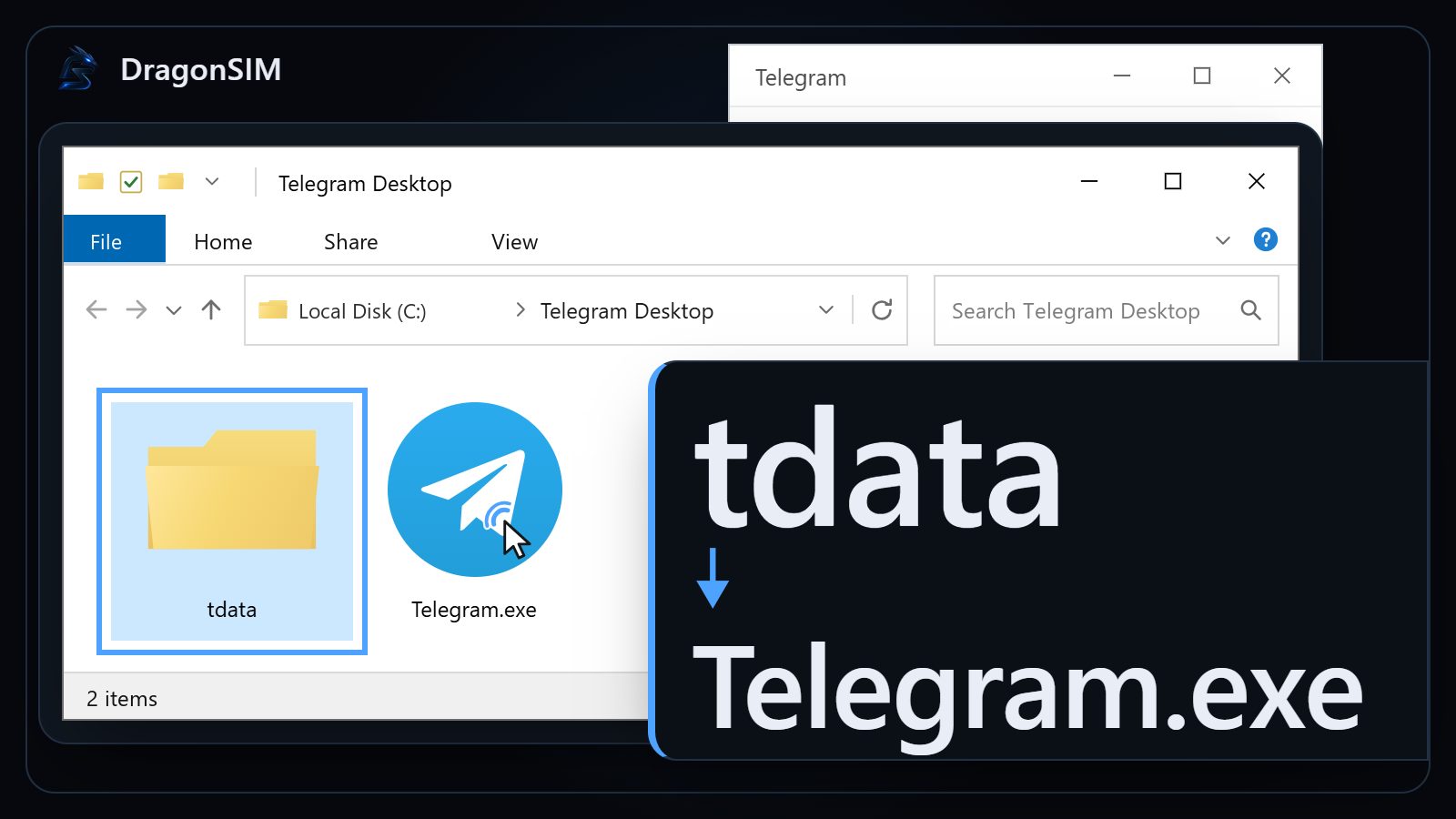
tdata is the folder Telegram Desktop keeps its own data in, and the copy you received already holds a completed sign-in. Put it beside Telegram.exe before you start the client for the first time: while that session is still valid, the client normally opens straight into the account and asks for nothing. Sometimes Telegram asks anyway — for the number, a login code or the cloud password — and the second half of this guide is about that.
- Keep the ZIPStored
- Make a working copyReady
- Get the official portableDownloaded
- Put tdata in placeIn position
- Start TelegramRunning
- Check profile and sessionsChecked
Jump to a section
What to have ready
Collect all of this before the client starts for the first time:
- the original ZIP from your order;
- one account unpacked out of it — that copy is what you work on;
- the official Telegram Desktop, installed or portable;
- an empty folder on the disk for this account;
- the password from
2FA.txt, if the account has a cloud password on it; - your own computer, with no third-party Telegram builds and no unfamiliar extensions.
tdata is the working folder of Telegram Desktop, the official Telegram app for computers. Mobile apps do not accept it. What sits inside is a sign-in that has already happened — an open session — so there is nothing left for the client to authorise. Whether Telegram asks for a number and a code anyway is Telegram’s call, made when a new device connects.
A DragonSIM archive carries both formats at once: tdata and a Session + JSON pair, with nothing to choose at checkout. What separates them is set out on Account formats; how an order itself works is on How to buy.
What the folder does not do
- Messages live in Telegram’s cloud and are pulled down after the sign-in, so this is not an archive of your correspondence.
- It does not bring a phone number back and does not stand in for a SIM card.
- It starts nothing by itself: this is data, not a program.
- It is not permanent access. A session can be ended from Telegram’s settings, and Telegram can end it on its own.
Close Telegram completely before you copy anything
The cross in the corner does not close Telegram. By default the client goes to the tray — the small icon area next to the clock. Right-click the icon there and choose to quit. If you are not sure it worked, look in Task Manager.
A running client keeps writing to its own files. A copy taken from a live folder can come out incomplete or internally inconsistent, and a copy like that is what causes trouble at the next launch.
Where the tdata folder lives
In the portable build, tdata sits in the same directory as Telegram.exe. In an installed client it usually ends up at %APPDATA%\Telegram Desktop\tdata\.
One rule covers both cases: the client keeps its working files in its own folder, next to Telegram.exe. An installed client lives inside your user profile by default, so that directory is %APPDATA%\Telegram Desktop\.
%APPDATA%\Telegram Desktop\| Client | When people use it | Working folder |
|---|---|---|
| Official portable | When people use itOpening a bought account on its own | Working folderNext to Telegram.exe |
| Official installed | When people use itYour own everyday Telegram | Working folder%APPDATA%\Telegram Desktop\ |
| A build that is not Telegram’s | When people use itDo not use it | Working folderUnknown — where it writes, and what it does with the data |
The path differs for the Microsoft Store version, for a non-standard installation, and whenever the client is started with a different working directory. So do not copy anything into %APPDATA% blindly — work out which directory is the live one on your machine first.
Putting the folder into Telegram Desktop
From here on this is about the tdata you received. The sequence is written for the portable build, where the client and its data sit side by side; for an installed client only the destination changes, and that is at the end of the section.
Step 1. Keep the ZIP and make a working copy
Unpack one account out of the original archive into a directory of its own. That copy is the one you handle from now on.
Inside it there is a
tdatafolder, and beside it the Session + JSON files and a README. A2FA.txtfile appears only for accounts that have a cloud password.What you should see: the original ZIP is untouched and the working copy holds one account.
Step 2. Download the official portable Telegram Desktop
Open the official Telegram Desktop site. Windows has two separate downloads there — the ordinary installer and the Portable version — each in a 64-bit and a 32-bit build. Take the portable one that matches your system, and do not pull the client from software catalogues, mirrors or ad-funded download managers.
Look at the Windows column: the portable download is the small link directly under the main button. What you should see: a ZIP archive with the portable client is on your disk.
Step 3. Unpack the portable build into a new empty directory
Give this account a directory of its own:
D:\Telegram-Work\account-01\Unpack the archive there.
Telegram.exewill appear inside — that file is the client.Do not start the client until the tdata folder is sitting beside it.
What you should see:
Telegram.exeis in that directory, and the client has not been opened yet.Step 4. Put tdata beside Telegram.exe
Copy the
tdatafolder out of your working copy into the same directory asTelegram.exe. It should end up looking like this:D:\Telegram-Work\account-01\ ├── Telegram.exe └── tdata\ └── the client’s local filesWhat is inside
tdatais the client’s business, and nothing in there needs touching. Two things do matter: the name is spelled exactlytdata, and it sits in the same directory asTelegram.exe.Correct
account-01\
├── Telegram.exe
└── tdata\
Wrong
account-01\
├── Telegram.exe
└── received-account\
    └── tdata\
Compare your own window with this one: the two names sit in a single directory with nothing in between. The tdata in the shot is a demonstration and is empty. What you should see: the
tdatafolder is visible next toTelegram.exe, with no directory between them.Step 5. Start Telegram.exe
Open the file with a double click. Keep one running client per working folder: a second launch simply brings the first window back.
What you should see: Telegram opens — either straight into the account, or on a verification screen.
Step 6. Check the profile
Make sure the account that opened is the one you expected:
- the name and the username;
- the country and the dial code of the number;
- the list of devices in the settings;
- the client is not asking you to sign in again.
Until you are sure, do not message anyone, do not join anything and do not change settings.
What you should see: with a valid session the right account is open. If Telegram asks for verification, the next section is yours.
If you use the installed client
This route is for people who know exactly which directory their Telegram Desktop works from. If you are not certain, take the portable build instead.
- Close Telegram completely, tray icon included.
- Copy your current
tdatato a spare folder. - Delete nothing until that copy exists.
- Put the
tdatayou received into the client’s working directory. - Start Telegram and see whose profile opens.
The first launch
There are three ways the first launch can go, and all three are about the session: either the client picked it up or it did not.
The right profile opens
The client found the session and signed in. Open the list of active sessions in Telegram’s settings — those are the devices this account is currently open on.
Telegram asks for a passcode
That is the lock on the app itself on this computer, not on the account: neither an SMS code nor the cloud password from 2FA.txt has anything to do with it, and guessing at it leads nowhere.
You get the phone number or QR screen
The client did not pick the session up. Either the layout is wrong, or the session itself may already have been closed.
Do not type the number yet. Close the client, compare your layout with the tree above, and then work through the checks in the next section.
The session opened
- the profile is the expected one
- check the active sessions
Telegram asks for confirmation
- an app passcode, a login code or the cloud password
- work out which of the three is being asked for
The new sign-in screen
- the session was not picked up, or it is closed
- check where tdata actually sits
A separate case: the client will not start at all
This one is not about the session but about the client. Check in order:
- whether you have write access to the working folder;
- whether Telegram is still running in the background;
- whether the client is official and reasonably current;
- whether the working copy is damaged;
- whether antivirus software is holding the files.
Delete nothing inside tdata on a hunch. Take a fresh copy from the ZIP you kept, unpack a clean portable client and try once more.
When Telegram asks for a number, a code or the cloud password
The number screen does not mean the login failed. It is the beginning of a new authorisation: the ready session went unused, and the client is offering to confirm a number and a code from scratch.
Telegram asks for the number
Run five checks before you type anything:
tdatasits next to theTelegram.exeyou are actually starting;- the name is exactly
tdata, with nothing appended; - there is no extra folder above it;
- Telegram was closed while the copy was made;
- the directory you launch is the one you prepared, not another Telegram behind a shortcut.
If the layout is right and the screen has not changed, go through it once more:
- check the layout;
- make sure you are starting that
Telegram.exe; - take a fresh copy from the original ZIP;
- unpack a clean official portable build;
- put tdata back in place and start again.
If the ready session still does not come up after that, the session itself may be the reason. A closed session is not brought back by copying the files again — what remains then is signing in by number. Support deals with the order; it cannot overrule Telegram.
Signing in by number only works where you receive the code and know the cloud password. With neither of them, write to support and quote your order number.
| On screen | Why | What to check |
|---|---|---|
| The phone number screen | WhyThe client found no session | What to checkThe Telegram.exe → tdata level, the folder name, and which directory you launched |
A new empty tdata appeared | WhyThe client started before the folder was placed beside it | What to checkTake a clean portable build and place tdata before the first launch |
| A different profile opened | WhyAnother account’s tdata was copied, or another Telegram.exe was started | What to checkEnd the process, check the path, and take the tdata of the account you meant |
An access error on tdata\working | WhyTelegram is still running, or there is no write access | What to checkEnd the process, check permissions, take a fresh working folder |
| The client closes immediately | WhyA damaged copy, security software in the way, or the wrong build | What to checkGo back to the original ZIP and download a fresh official client |
Telegram asks for a code
Telegram may send the login code inside Telegram itself — to a device where this account is already open — instead of by SMS. So “no SMS arrived” does not mean there is no code.
Telegram offers the code by phone call only to accounts that have a cloud password enabled, so a call is not a fallback you can count on.
Telegram asks for the cloud password
The cloud password — also called 2FA, or two-step verification — is the password of the account itself. Telegram stores it and asks for it when a new device signs in. Where an account has one, DragonSIM puts it in a 2FA.txt file.
Three different things that are easy to mix up:
- the code from SMS or from the Telegram chat — one-time, and it arrives on its own;
- the cloud password — permanent, held by Telegram, asked for when a new device signs in;
- the local passcode — it locks the app on this computer and has nothing to do with the account.
Type the cloud password into the official Telegram and nowhere else. If it has been forgotten, recover it through Telegram as well — through the recovery address set in the account’s settings.
Keeping the account after you are in
The account opened, and the work is not finished. The tdata folder on your disk stays live access: whoever holds it signs in as you. Keep it the way you would keep a password.
Check the active sessions
On a computer the list is under Privacy and Security → Active sessions; on a phone, under Settings → Devices. It shows which devices the account is open on, and it is where the ones that should not be there get closed.
A brand-new session cannot end the older ones until a day has passed — that is Telegram’s own limit. It is neither a fault nor a reason to look for a workaround: wait, then come back to the list.
Set protection up inside Telegram only
Telegram’s own settings already carry everything that matters:
- the cloud password — two-step verification whenever a new device signs in;
- the recovery address: the mailbox Telegram uses to help you get a forgotten password back;
- the local passcode on the app itself;
- the list of active devices.
Before you change the password, look at where recovery points. A forgotten cloud password, with no access to that mailbox and no second live session, is very hard to get back.
If the account moves to another computer
A move follows the same order as the first time. Close the client completely, copy tdata next to Telegram.exe on the new machine, and only then start Telegram. The copy opens the account exactly as the original does, which is why the old working folder is deleted once the move is done.
This keeps access yours
- The original ZIP lives apart from the working copy.
- One folder per account, so profiles do not get mixed up and a spare is easy to delete.
- Copies you have finished with are deleted rather than collected across the disk.
- The folder is opened only in the official Telegram Desktop, on your own machine.
This hands access to strangers
- Forwarding the folder in a messenger or by mail.
- Keeping it in shared cloud storage or on a shared computer.
- Uploading it to an online checker to see whether the account is alive.
- Passing it on together with
2FA.txt— that is the files and the password in one go.
The full storage rules are on Trust and safety.
Final checklist
Before the first launch:
- The original ZIP is stored separately.
- The client came from the official site.
- This account has a directory of its own.
- Telegram is fully closed, tray included.
tdatasits next toTelegram.exe, with no folder in between.- The folder has not been uploaded anywhere.
After the first launch:
- The expected profile opened.
- The active sessions have been checked.
- The account files and
2FA.txtare only on your computer — not in a chat, not in shared cloud storage. - The working folder holds exactly one account.
The other half of the archive
A tdata folder is opened by hand, in Telegram Desktop. The second set of files in the same archive — Session + JSON — is there for people who work with accounts through programmatic clients.
Common questions
Can I open a tdata folder on a phone?
No. Mobile Telegram does not accept a tdata folder — it belongs to the desktop client. On a phone you sign in with a number and a code. And do not try to “convert” the folder through unfamiliar websites: that hands them access and nothing else.
Does TDATA work on macOS?
It is prepared for Windows, and Windows is where to open it. A macOS client exists, but it keeps its data differently and a Windows folder may not suit it. If you specifically need a Mac, sign in there with a number and a code. If you do test the folder on another system, work on a copy.
Can I copy a tdata folder?
Yes — for a spare or a second working copy, and only with Telegram fully closed. But every copy opens the account exactly as the original does, which is why copies are not forwarded to anyone and not kept in shared cloud storage.
Why does Telegram not see the folder?
Start with the location. The folder has to be named exactly tdata, sit next to the Telegram.exe you are starting, and be there before the client’s first launch, with no extra directory above it. If the location is right and the screen has not changed, work through the checks in “When Telegram asks for a number, a code or the cloud password”.
Which client should I use, installed or portable?
For a bought account, portable: it installs nothing and leaves your own Telegram alone. Use the installed version only if you know its working folder for certain and have copied your existing tdata somewhere safe first.
Where to check this
- Telegram Desktop: the official download pagedesktop.telegram.org
- Telegram Desktop source code: which builds are official, and for which systemsgithub.com/telegramdesktop
- Telegram’s own answers on login codes, the cloud password and active sessionstelegram.org/faq
- Why a new session cannot end the others during the first daycore.telegram.org
- What the archive holds: TDATA and the Session + JSON pairdragonsim.net — account formats